No network access. No account.
Copy something. Find it later.
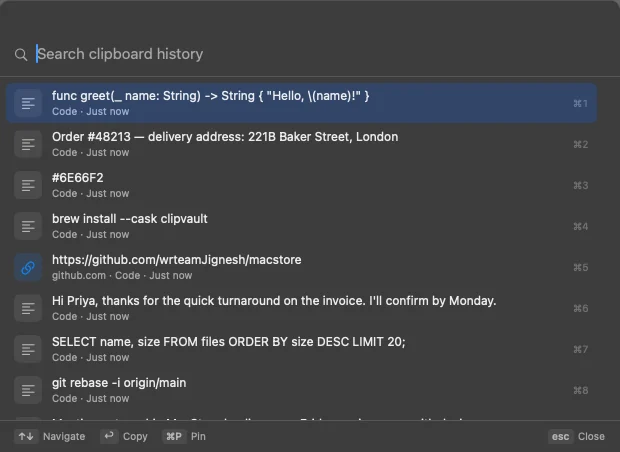
Your Mac's clipboard holds one thing at a time. ClipVault keeps a searchable history of what you copy, so the link, reply or command from an hour ago is one shortcut away, and never leaves your Mac.
macOS 14 Sonoma or later · Apple silicon & Intel · 2.1 MB
How it works
Nothing new to learn. One shortcut to remember.
ClipVault fits into the copy and paste you already do.
- 1
Copy as usual
Keep using ⌘C in any app. ClipVault quietly keeps each copy in its history, on your Mac.
- 2
Press ⌥⇧V
The quick panel opens over whatever you're doing, with your latest copies on top.
- 3
Type, pick, paste
Type a few letters to filter, use the arrows or ⌘1–9, then press Return to put it back on the clipboard.
What it handles
Everything you copy, ready when you need it again.
Every kind of copy
Text, links, rich text, images and copied files, each shown the way you'd recognize it.
A panel that stays out of the way
Opens from any app with one shortcut, works entirely from the keyboard and closes with Esc.
Instant, offline search
Finds a word anywhere in your history as you type. Filter by type or by date.
Pins, favorites and snippets
Keep the things you reuse: addresses, replies, commands. Pinned items are never cleaned up.
Menu bar
Recent and pinned items one click away, with a switch to pause recording.
History that tidies itself
Keep copies for 24 hours up to forever, with item and storage limits (1,000 items and 512 MB by default).
Privacy
A clipboard history that knows what to forget.
No network access, no account, no analytics. And some copies are never kept at all.
Never read
- While recording is paused, including copies made during the pause
- When the app in front is excluded: 1Password, Bitwarden, Keychain Access, Apple Passwords, KeePassXC, Dashlane, LastPass, Enpass and NordPass by default
- When the copy carries a password-manager privacy marker
Read, but never stored
- Private keys, AWS, GitHub, Slack, Stripe, Google, OpenAI and Anthropic keys, and JWTs
- Payment card numbers
- Very large copies (over 5 MB of text or 100 MB of image data)
- Optionally, anything that looks like a generated password
Stated plainly
Not encrypted by ClipVault
History is protected by macOS file permissions and by FileVault when it's on, the default on most Macs.
No check catches every secret
A password you typed by hand looks like normal text. Exclusions and markers are the reliable protection.
Source app is approximate
macOS doesn't say which app wrote to the clipboard, so ClipVault uses the app in front at that moment.
Keyboard first
Your hands never leave the keys.
The quick panel is built to be used without a mouse.
- Open the quick panel (you can change it)
- ⌥⇧V
- Move through results
- ↑↓
- Pick one of the first nine
- ⌘1–9
- Copy it back to the clipboard
- ↩
- Pin or unpin
- ⌘P
- Close the panel
- esc
Install
Set up in about a minute.
- Step 1
Download the DMG
Each solution is a single disk image. Open it once it has downloaded.
- Step 2
Drag to Applications
Drag ClipVault onto the Applications folder in the window that opens, then eject the disk image.
- Step 3
Open it
Open ClipVault from Applications. It's signed and notarized by Apple, so macOS checks it and opens it like any other Mac app.
FAQ
Questions, answered honestly.
Does ClipVault send my clipboard anywhere?
No. ClipVault makes no network requests at all, has no account and no analytics. Link previews are built from the URL text only. History lives in ~/Library/Application Support/ClipVault on your Mac.
What about passwords?
Copies from password managers are skipped without being read: they're excluded by app and by the privacy markers most password managers set. Obvious secrets such as API keys, private keys and card numbers are read but not stored. No check can catch every password, so you can also pause recording or exclude more apps in Settings.
Can it paste for me, not just copy?
Yes, if you want. Set Return to "Copy and paste" in Settings and macOS will ask for Accessibility access, which ClipVault needs to send ⌘V to the app you were in. Without it, ClipVault only copies.
Does it slow my Mac down?
No. ClipVault checks a single counter for clipboard changes a couple of times a second, stops while the screen sleeps, and uses no measurable CPU when idle.
How do I delete my history?
Delete single items, use Clear Unpinned History, or Clear All in Settings. Deleting an item removes it from the database, the search index and its stored image files.
Is the download safe to open?
Yes. ClipVault is signed with a Developer ID and notarized by Apple, so macOS checks it and opens it like any other Mac app.
Stop losing what you copied.
Install it once, keep copying as usual, and press ⌥⇧V the next time you need something back.
Version 1.0.2 · macOS 14 Sonoma or later · Apple silicon & Intel · 2.1 MB