Free · No account · Notes stay on your Mac
The right note, in the right app, on the right day.
Ledge keeps your sticky notes on the edge of your screen and shows the ones that belong to what you're doing: the app in front, the website you're on and today's date. Everything else stays out of sight until you need it.
macOS 14 Sonoma or later · Apple silicon & Intel · 2.7 MB
How it works
Sticky notes that know where you are.
Most sticky notes pile up on the screen. Ledge shows the few that matter right now.
- 1
Write a note where you need it
Press ⌃⌥N in any app. A sticky note opens that's already linked to that app, ready to type in.
- 2
Switch apps, the deck follows
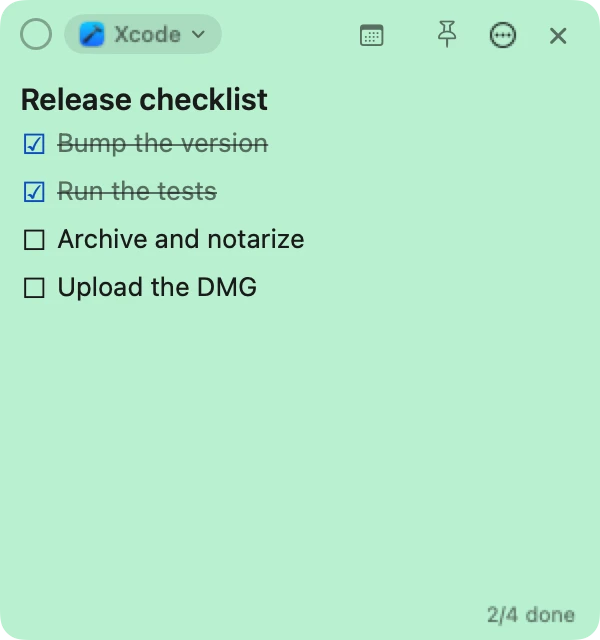
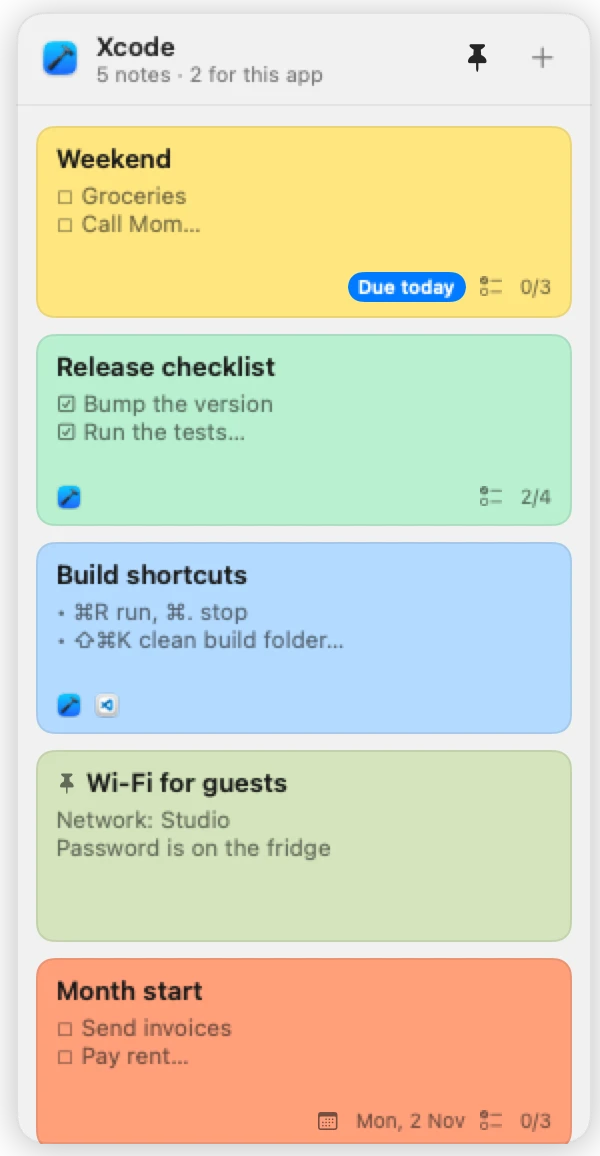
The strip on your screen edge now holds that app's notes. Rest the pointer on it to open the deck, and click a card to open the note.
- 3
See everything on the desktop
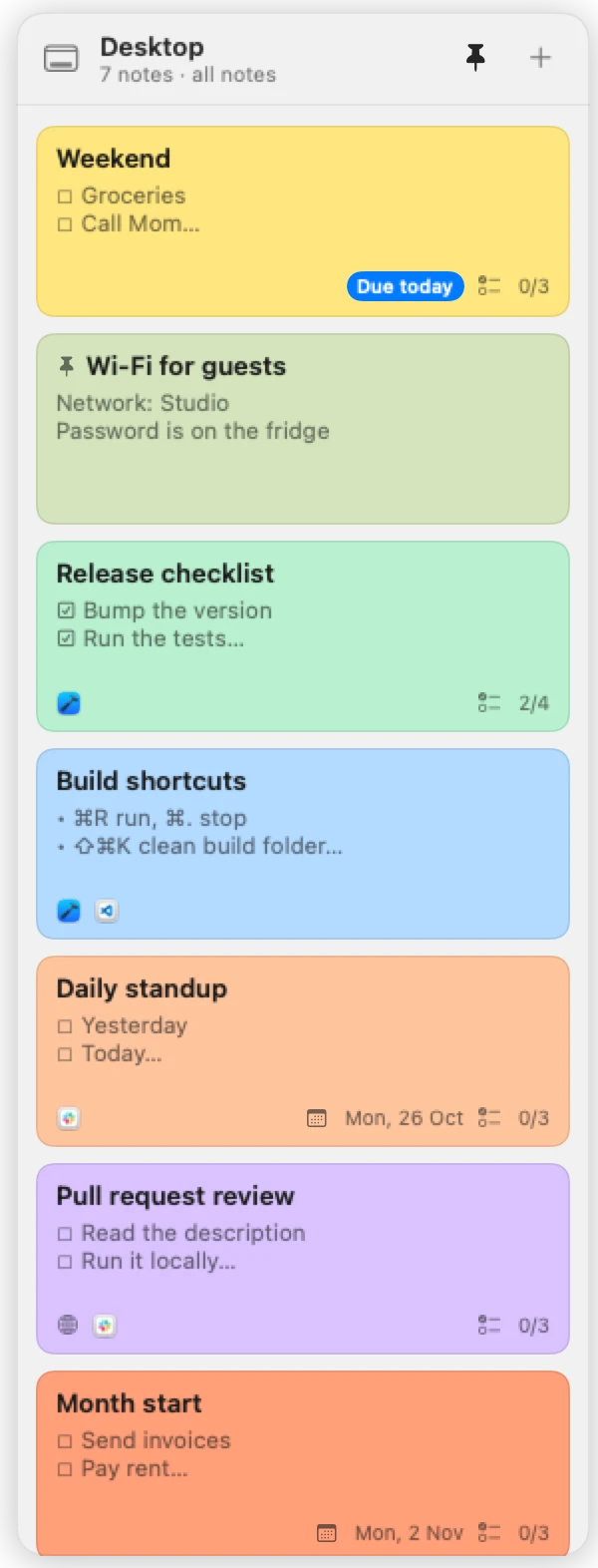
Click the desktop and the deck shows every note you have, or only your global ones if you prefer.
The deck
Always one hover away, never in the way.
Ledge lives as a thin strip of coloured tabs on the edge of your screen, one tab per note. Rest the pointer on it and the deck slides open with your notes as cards.
Any edge you like
Left, right, top or bottom, at the start, centre or end of the edge. At the top it stays below the menu bar and the notch; at the bottom it stays above the Dock.
Opens on hover, or with a click
Choose how long the pointer rests before it opens, or turn hover off and click the strip. Press ⌃⌥D to open it from anywhere, and pin it to keep it open.
Every display, every Space
Follow the display you're working on, stay on the main display, or show on all of them. The deck also appears over full-screen apps, unless you'd rather hide it there.
Cards that open into sticky notes
Each card opens as its own floating note beside the deck. Close it and it simply goes back into the deck. Drag cards to put them in your order.

Strip
On the desktop: every note
Notes for each app
Switch apps and the deck switches with you.
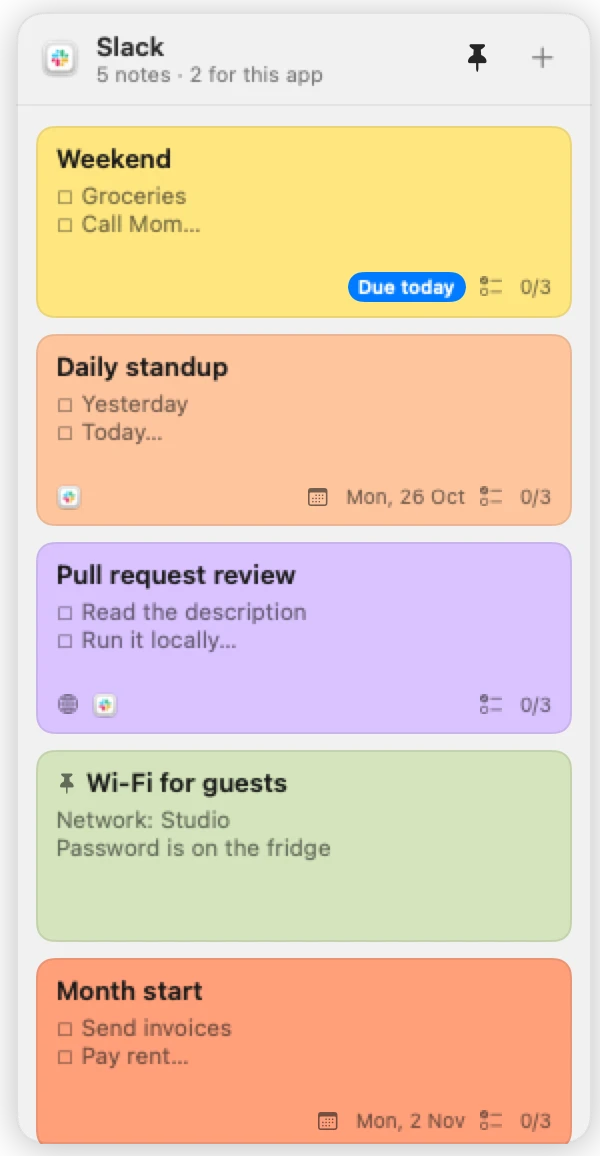
Link a note to one or more apps. When you switch to one of them, its notes move into the deck; when you leave, they step aside. No folders to open, nothing to search for.
Linked in one step
Notes made with ⌃⌥N are linked to the app you're in. Add more apps from the note's app chip, picking from a searchable list of installed and running apps.
Global notes, your rule
Notes that aren't linked to an app show everywhere, or only on the desktop. Pin a note to keep it in every app.
The desktop shows it all
When Finder is in front with no windows open, the deck lists every note at once, or only global and pinned ones.
Open notes follow along
Sticky notes you've opened hide when you switch to an app they don't belong to, and come back when you return.
A deck for each app
Give an app its own edge, say the bottom in Figma and the right in Xcode, or have the deck open by itself when you switch to that app.
In Xcode
In Slack
Windows, tabs and websites
As precise as one window or one website.
Some notes belong to a single project, a client or a site rather than a whole app. Link them there, and they show up only when that window, tab or page is in front.
Window and tab titles
Show a note only when the window or tab title contains a word: a project, a client, “Invoice” or “Pull Request”. This uses macOS Accessibility, which you turn on only if you want it.
Websites
Link a note to github.com, or only to github.com/your-team. Works in Safari, Chrome, Edge, Brave, Arc, Vivaldi and Opera. macOS asks once for each browser.
Link what's in front of you
The note's link menu offers the app, window and website you're on right now, so linking takes one click.
Most relevant first
Notes due today come first, then website and window notes, then app notes, then pinned and global ones.
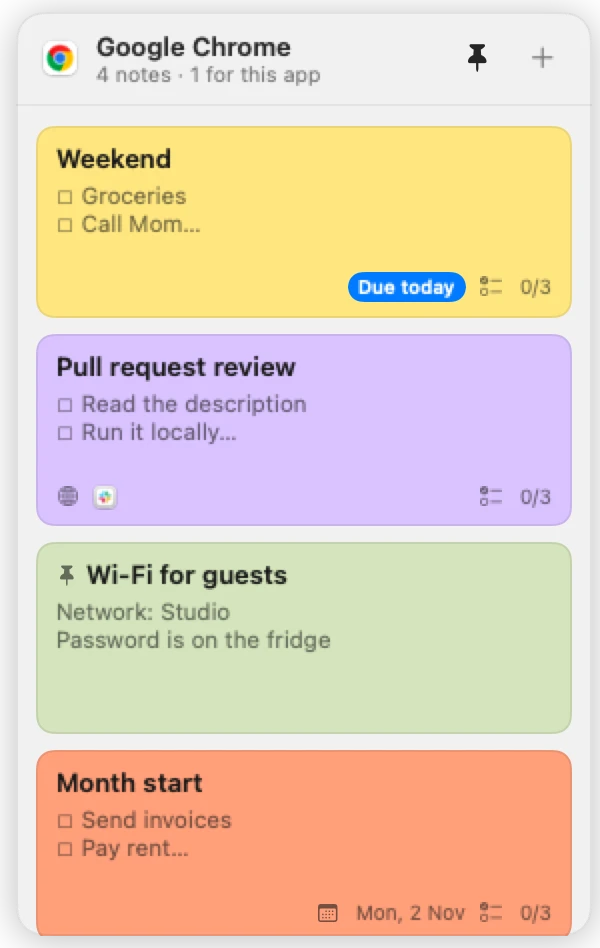
Chrome on github.com
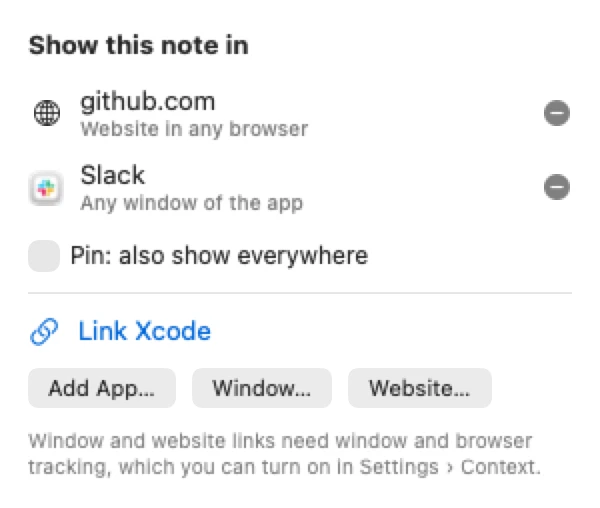
Where a note shows
Notes for dates
Every Monday. The 1st. The last working day.
Give a note a schedule and Ledge brings it forward on the right day, with its checklist fresh each time. Ideal for standups, month-end tasks, rent, reports and weekend chores.
Repeat the way your work repeats
- Once, on a date you pick
- Every day, or every few days
- Chosen weekdays, every week or every few weeks
- Monthly on a date, or on the last day
- Monthly on the first Monday, last Friday or any Nth weekday
- Monthly on the first or last working day
- Every year on a date
Only on its days, or always
Hide the note on other days, or keep it in the deck with a “Due today” badge on the day and the next date the rest of the time.
Checklists that reset themselves
Tick things off as you go. When the next occurrence starts, every box unticks, ready for the next Monday or the next month.
A reminder at the right time
Add a time and macOS shows a notification on each due day. Click it to open the note.
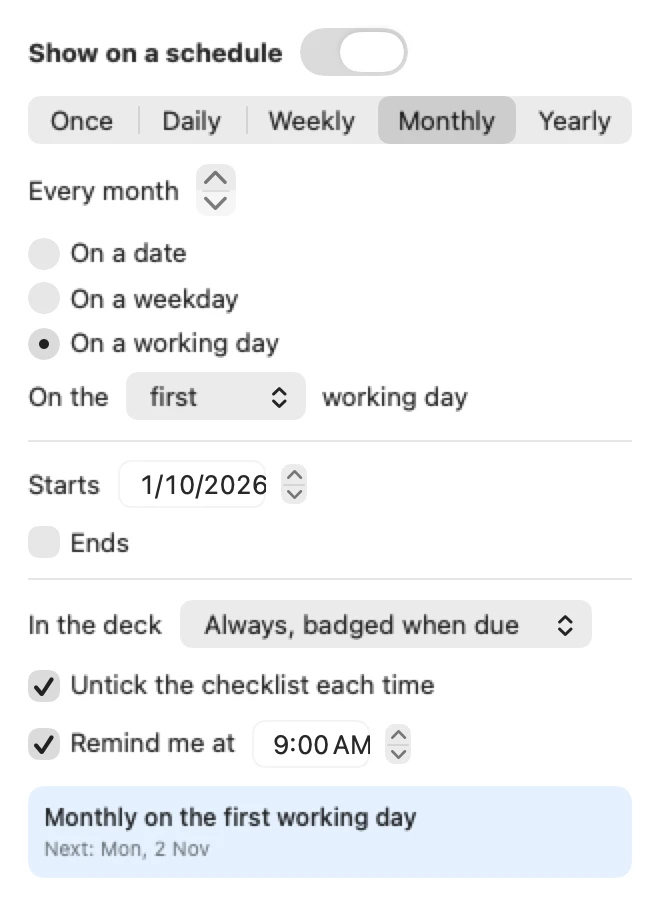
Monthly, on the first working day
The note itself
A sticky note that's also a checklist.
Write the way you think: a quick line, a list, or a checklist to work through. Formatting appears as you type, with nothing to set up.
Checkboxes you can click
Type [] and a space for a checkbox. Click it to tick it off. Return continues the list, and Return on an empty item ends it.
Formatting as you type
Bullets, numbered lists, headings, bold (⌘B), italic (⌘I) and links (⌘K). Tab indents a list item, and links open with a click.
Plain Markdown underneath
Copy a note and you get clean Markdown. Paste Markdown in and its checkboxes and bullets appear.
Any colour
Pick one of ten suggested colours, reuse your recent ones, or choose any colour at all. The text switches between dark and light so it stays readable.
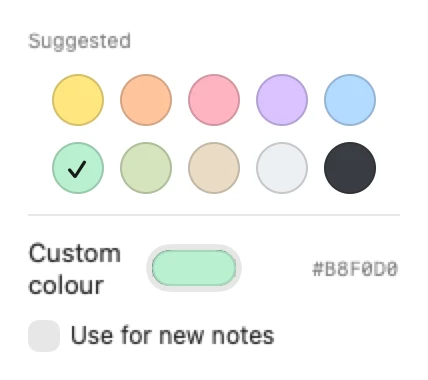
All Notes
Every note, one window away.
The All Notes window (⌃⌥A) gathers everything in one place, including notes that aren't in the deck right now.
Instant search
Finds words in your notes and in the names of the apps and websites they're linked to.
Smart filters
Global, Pinned, Scheduled, Due Today and Archived, plus a list for every app and website you've linked.
Your order
Drag notes into the order you want, in All Notes or right in the deck.
Archive, don't lose
Archive notes you're done with and bring them back any time. Deleted a note by mistake? Undo it within ten seconds.
Backup and export
A backup file keeps everything: links, schedules and colours. Or export every note as a readable Markdown file.
Import
Restore a backup, or bring in Markdown and text files as new notes.
Keyboard
Quick from anywhere, quicker in a note.
The four global shortcuts work in every app, and you can change them in Settings.
From any app
- New note for the app you're in
- ⌃⌥N
- New global note
- ⌃⌥G
- Open or close the deck
- ⌃⌥D
- Show All Notes
- ⌃⌥A
In a note
- Start a checklist
- []space
- Turn lines into a checklist
- ⇧⌘L
- Bulleted list
- ⇧⌘8
- Bold
- ⌘B
- Insert a link
- ⌘K
- Close the note
- esc
Also included
The small things that make it feel at home.
Global shortcuts
New note, global note, deck and All Notes from any app. Change them in Settings.
Menu bar
New notes, deck position, displays and settings, one click away.
Open at login
Starts quietly with your Mac and stays out of the Dock and ⌘Tab.
Picks up where you left off
Sticky notes you had open come back when Ledge starts.
Light and dark
The app follows your Mac's appearance, or set it to light or dark.
Works offline
Everything happens on your Mac, so there's nothing to sign in to or sync.
Privacy
Your notes stay on your Mac.
Ledge has no account and makes no network requests. Knowing which app you're in is only used, in the moment, to pick your notes.
What Ledge does with your data
- No network requests at all: no account, no sync, no analytics
- Notes are saved in ~/Library/Application Support/Ledge on your Mac
- Window titles and website addresses are read only to match your links, never stored or sent
- Logs record counts and error codes, never your notes, titles or addresses
Permissions, only when you need them
- App and desktop notes, dates, reminders in the deck
- Nothing
- Window and tab title links
- Accessibility, only if you turn it on
- Website links
- Automation, asked once per browser
- Reminder notifications
- Notifications, asked when you add one
Stated plainly
Not encrypted by Ledge
Notes are protected by macOS file permissions, and by FileVault when it's on, which is the default on most Macs.
Firefox keeps its address to itself
Firefox doesn't let other apps read the current address. Use a window title link there instead.
What “the desktop” means
Finder in front with no Finder windows open. You can also count any Finder window as the desktop in Settings.
Install
Set up in about a minute.
- Step 1
Download the DMG
Each solution is a single disk image. Open it once it has downloaded.
- Step 2
Drag to Applications
Drag Ledge onto the Applications folder in the window that opens, then eject the disk image.
- Step 3
Open it
Open Ledge from Applications. It's signed and notarized by Apple, so macOS checks it and opens it like any other Mac app.
On first launch a short welcome lets you pick the deck's edge, and two example notes show how linking and schedules work.
FAQ
Questions, answered honestly.
Is Ledge really free?
Yes. Ledge is free to download and use, with no account, no trial and no in-app purchases.
Does Ledge send my notes anywhere?
No. Ledge makes no network requests at all, has no account and no analytics. Your notes live in ~/Library/Application Support/Ledge on your Mac.
Why would it ask for Accessibility or Automation access?
Only if you choose to link notes to window titles (Accessibility) or to websites (Automation, once per browser). Per-app notes, the desktop view and date notes need no permission at all.
Can one note show in several apps?
Yes. Link a note to as many apps, windows and websites as you like. It shows wherever any of them matches, and you can pin it to show everywhere.
What happens to a recurring checklist?
When the next occurrence starts, for example the next Monday, every ticked item unticks by itself. You can turn this off for any note.
How do I back up or move my notes?
Use Export Backup in Settings › Data or the File menu. The backup keeps links, schedules and colours. Import it on another Mac to bring everything across.
Is the download safe to open?
Yes. Ledge is signed with a Developer ID and notarized by Apple, so macOS checks it and opens it like any other Mac app.
The right note, in the right app, on the right day.
Install Ledge, press ⌃⌥N in the app you're using, and write the first note that belongs there.
Version 1.0.0 · macOS 14 Sonoma or later · Apple silicon & Intel · 2.7 MB · Free